
 Community
 Video Library
 Agent Training
 Freshservice
 Freshdesk
 Freshchat
 Freshcaller
 Freshsales
 Freshteam
 Freshworks Neo
 Freshsurvey
TABLE OF CONTENTS
- Learn how Freshworks identifies AI
- Identify when you're talking to an AI Agent
- See when an AI Agent takes action
- See how Freddy AI Copilot assists agents
- Review AI-generated replies before sending
- Review AI answers before using them
- Review AI-generated resolution notes
- Check whether a summary was generated by AI
- Review AI-generated suggestions before applying them
- Use AI to find similar requests and changes
- Review AI-generated sentiment
- Review AI-generated translations
- Use AI to find changes that may have caused an incident
- Understand how AI analyzed a skillset
- Review AI-generated reports and knowledge
- Use labels and the AI icon to identify AI
Many Freshworks products integrate AI to help customers, employees, and service teams get answers, resolve requests, and work more efficiently. Depending on the product and features enabled for your organization, you may interact directly with an AI Agent or see AI-generated content while using or engaging with our products.
We believe it is important that customers and end users have a clear understanding of your use of AI within our products. We have built our products to make your engagement with AI transparent so you can easily recognize when you are interacting with AI, viewing AI-generated content, or using an AI-powered feature.
This article explains the labels and visual indicators we have placed in our products to help you understand when AI is involved.
Note: Certain AI labeling within our products is configurable by the Administrator. This allows customers to customize AI labels and may, in some cases, mean that labels described here are absent from the end user experience.

It is the responsibility of the customer and admin to ensure that any modification to the default labeling is done with care and after consultation with the customer’s legal advisor to ensure the customer’s legal obligations of AI transparency are being met as a result of the customer’s modification of the product.
Learn how Freshworks identifies AI
Freshworks uses two types of indicators to identify AI involvement:
Text labels tell you when you are interacting with AI or viewing AI-generated content.
The AI sparkle icon (✦) indicates that AI is involved in an interaction, action, or generated content.
These indicators work together to help you recognize AI involvement in the product.
Note: The labels and their placement can vary depending on the product, feature, and experience.
Identify when you're talking to an AI Agent
A Freddy AI Agent can interact directly with you to help resolve a request. Depending on your organization's configuration, you may interact with an AI Agent through chat, messaging, or email.
The AI Agent has a separate identity and is labeled so you can distinguish it from a human agent.
Identify Freddy AI Agent in chat
In web or in-app chat, the AI Agent appears with its own name and avatar. The AI sparkle icon provides an additional indication that you are interacting with AI.
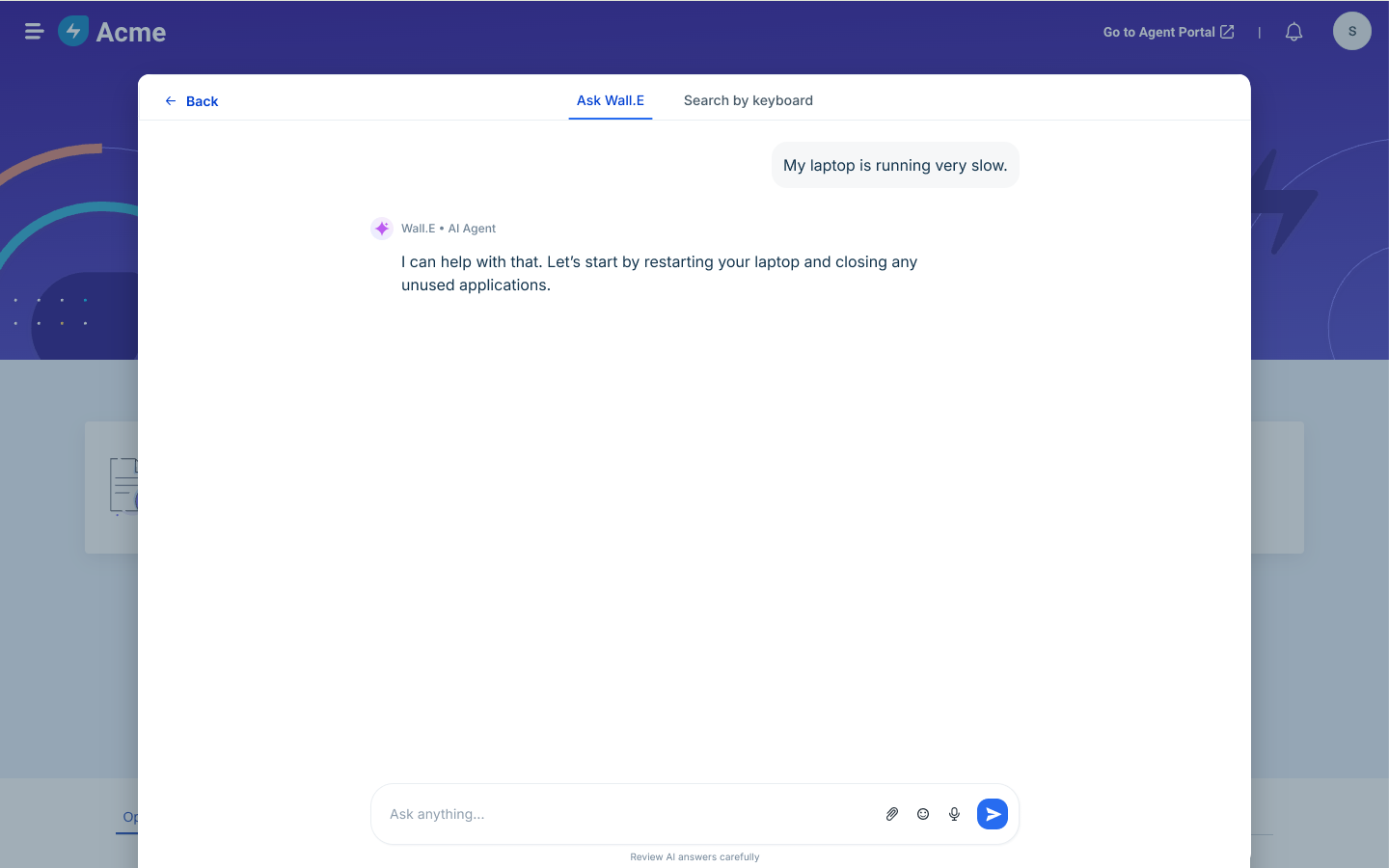
The AI Agent's name and label identify it as AI from the beginning of the conversation.
Identify Freddy AI Agent in messaging apps
When an AI Agent responds through a supported messaging channel, its identity and AI labeling are shown in the conversation.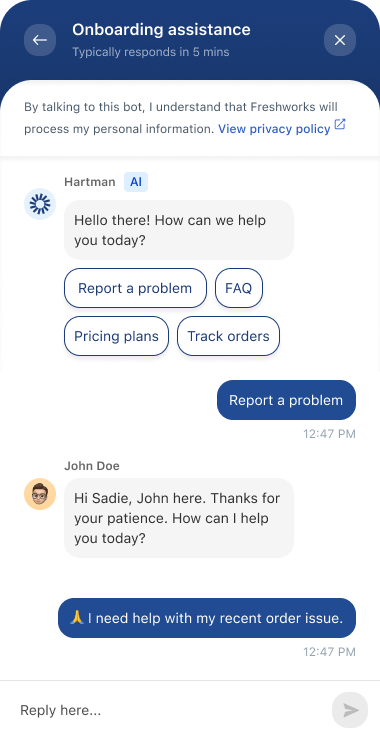
This helps you recognize you are interacting with an AI Agent, even when the conversation takes place in a messaging app.
Look for the AI disclosure in email
When an AI Agent responds by email, the message is sent using the AI Agent's name.
AI-generated email responses also include a disclosure: This response was generated by AI. Please review the information carefully. Contact our team if you need further assistance.
The disclosure identifies the response as AI-generated and reminds you to review the information carefully.
See when an AI Agent takes action
An AI Agent can work on requests on behalf of your service team. Depending on the configuration, it can draft or send responses and add private notes.
When an AI Agent takes an action, the request shows labels that identify the activity. This helps human agents understand what the AI Agent has done and take over when needed.
Identify notes added by an AI Agent
A private note added by an AI Agent is marked as an AI Agent-added note.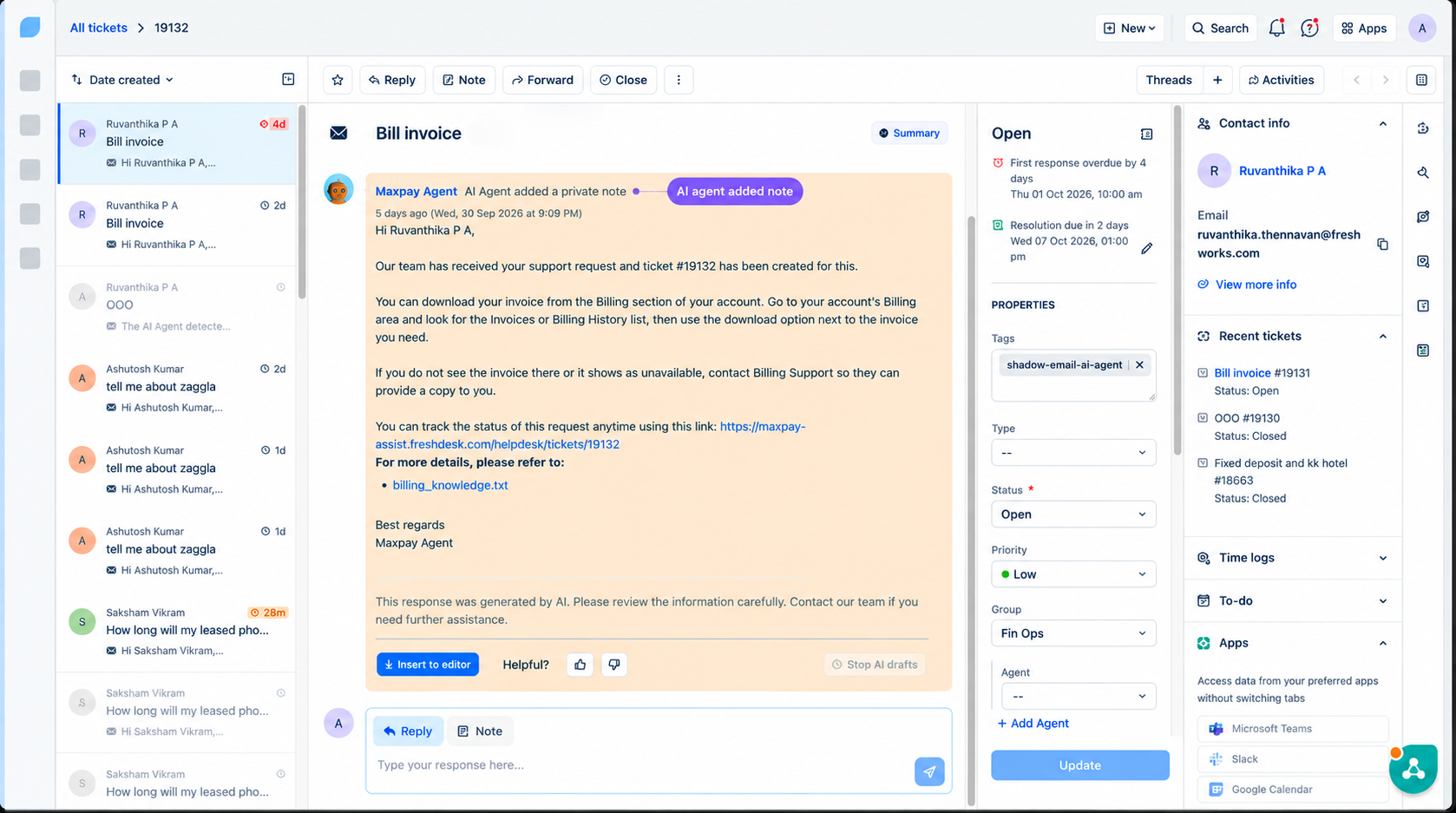
Identify responses sent by an AI Agent
A response drafted or sent by an AI Agent is clearly identified as AI-generated and includes a reminder to review it carefully before using it.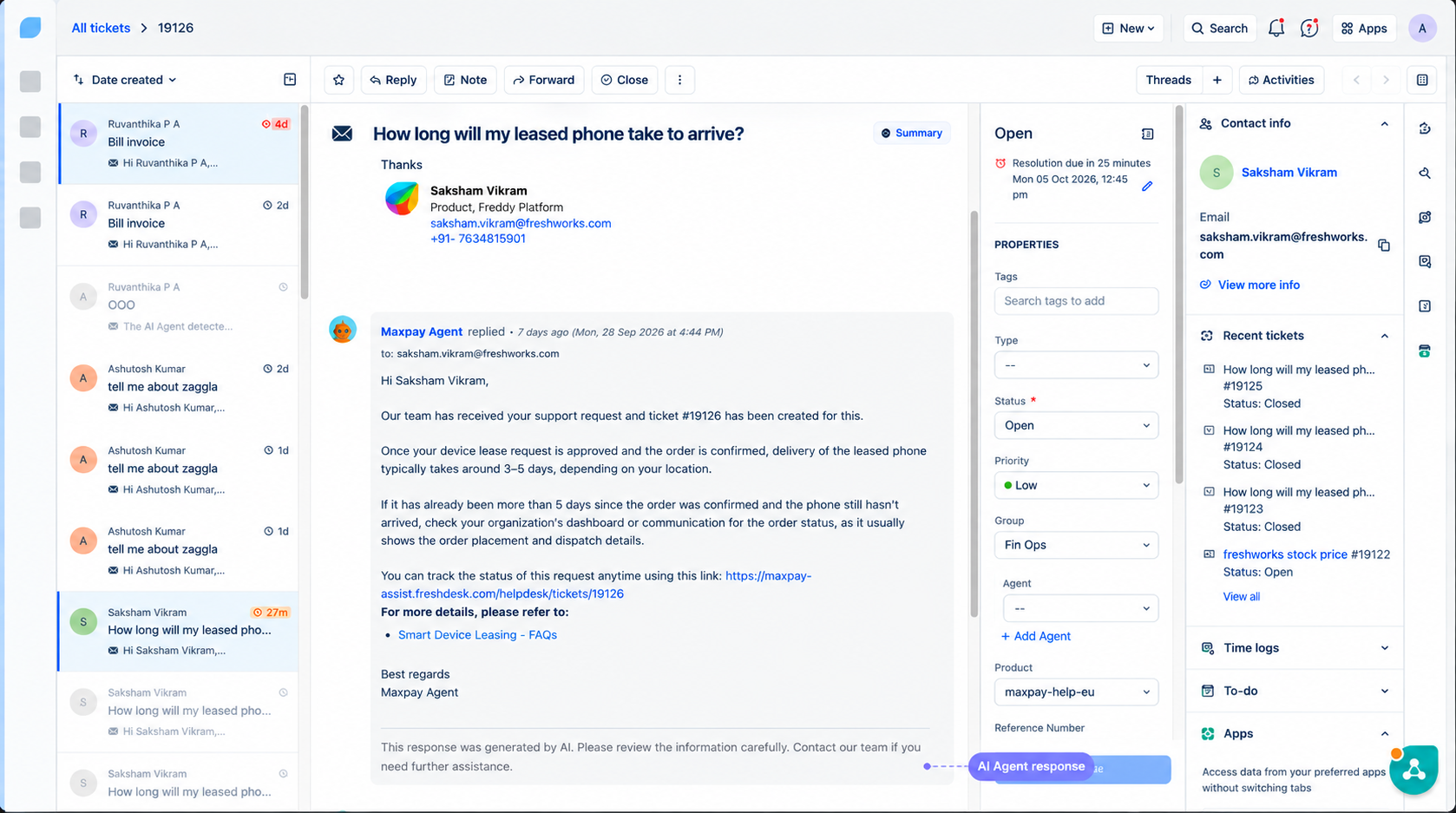
See when an AI Agent is responding
When an AI Agent is actively responding, the request can display a message such as:
AI Agent is talking to the customer. You can assign the ticket to yourself or others at any time.
The interface can also provide an Assign to self option so a human agent can take over the request.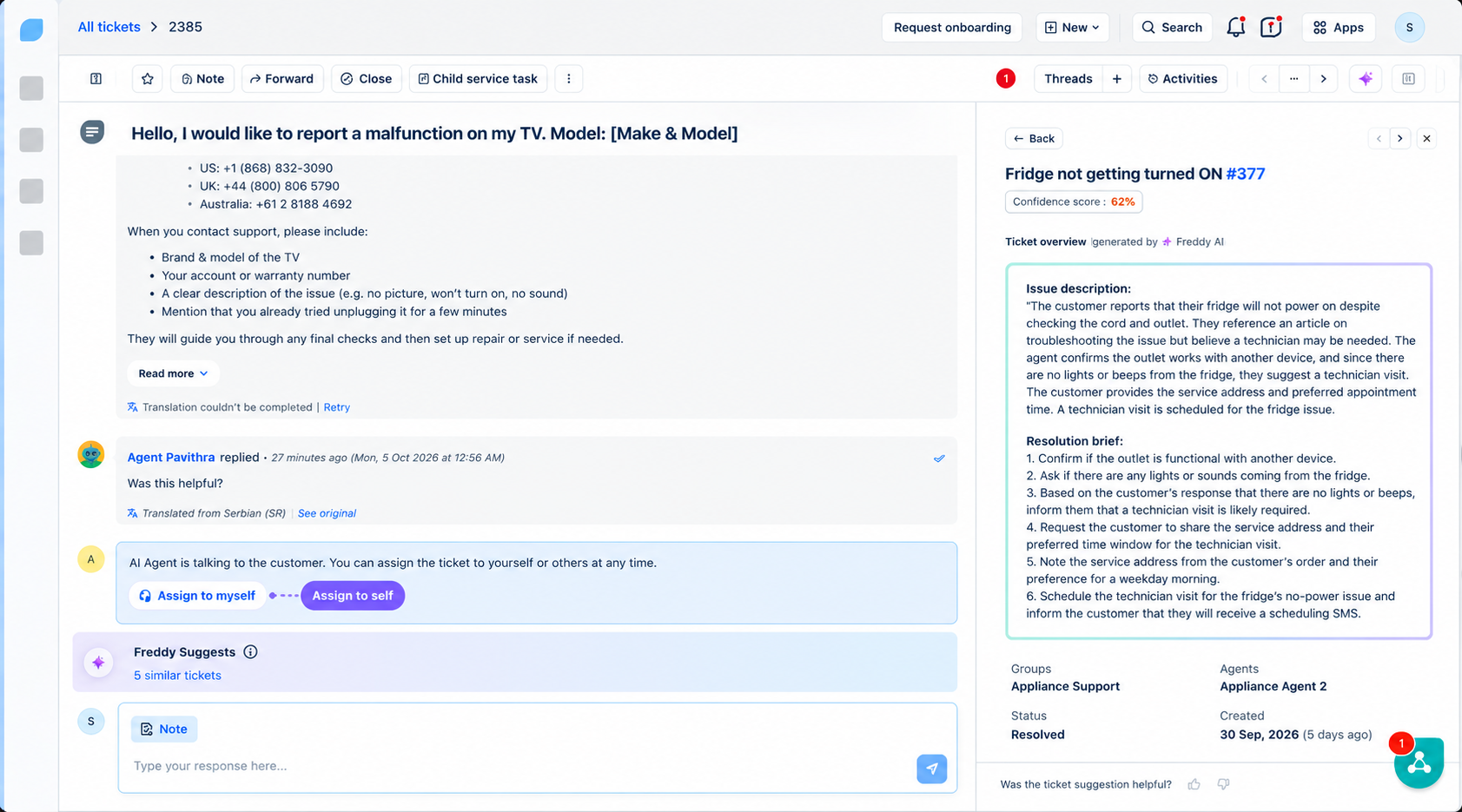
AI-related tags can also identify requests handled by an AI Agent in request lists.
See how Freddy AI Copilot assists agents
Freddy AI Copilot helps human agents work on requests by providing suggestions, summaries, translations, analysis, and other AI-powered assistance.
Unlike an AI Agent, Copilot does not communicate directly with the requester. It assists the human agent working on the request.
AI-generated Copilot content is identified in the interface, and the agent can review, edit, accept, insert, or send the content before sharing it with the requester.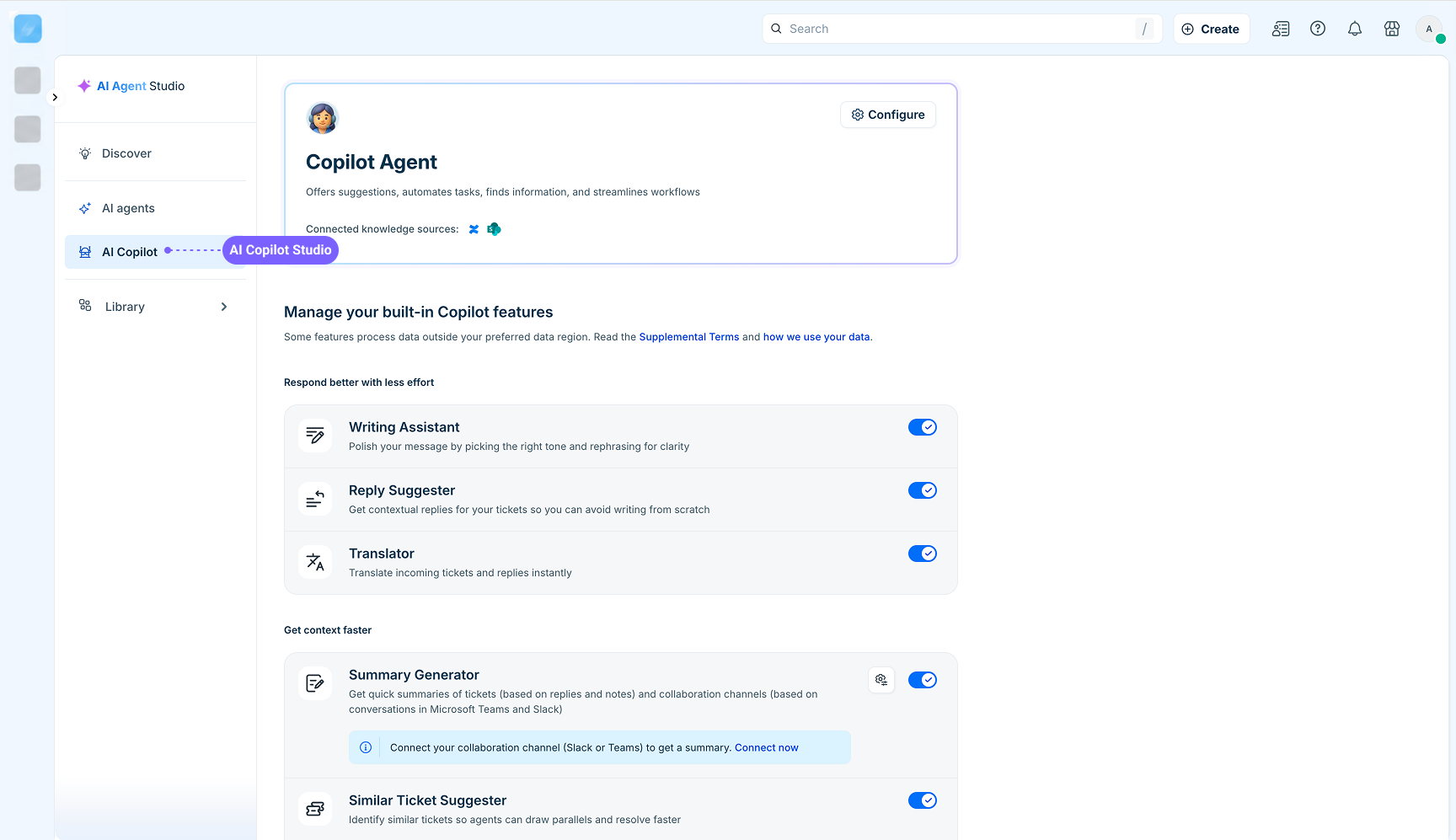
Review AI-generated replies before sending
Writing Assistant and Reply Suggester can generate response suggestions while an agent writes a reply.
Look for labels such as:
AI Suggested Reply
Refine, Reply using AI, Edit with Copilot
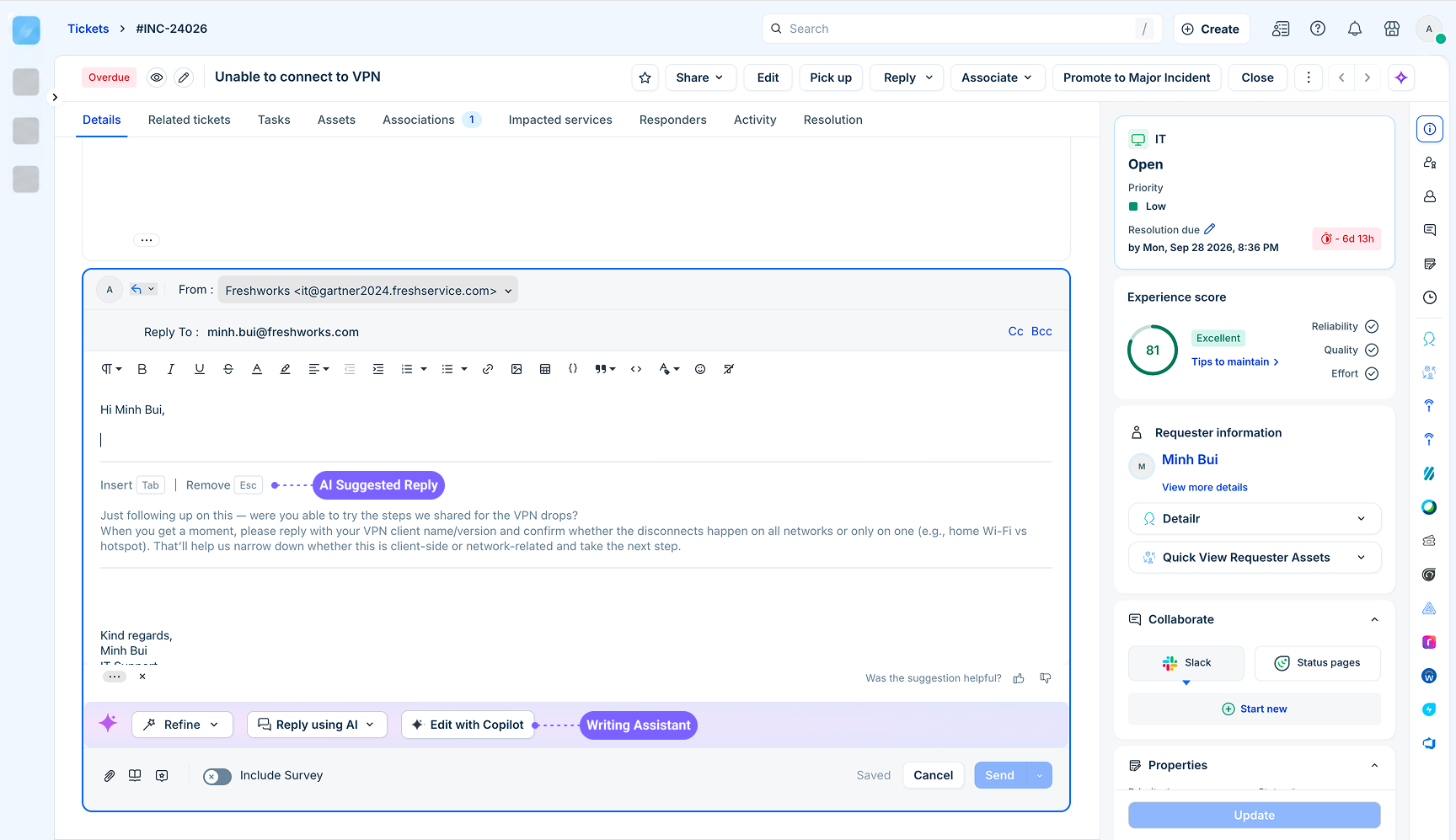
The agent can review the suggestion and decide whether to use it.
Review AI answers before using them
The Freddy AI Copilot side panel provides a conversational AI experience that agents can use while working on a request.
For example, an agent can ask questions, find similar requests, or get suggestions to help resolve an issue.
AI-generated answers include a reminder to review the information carefully.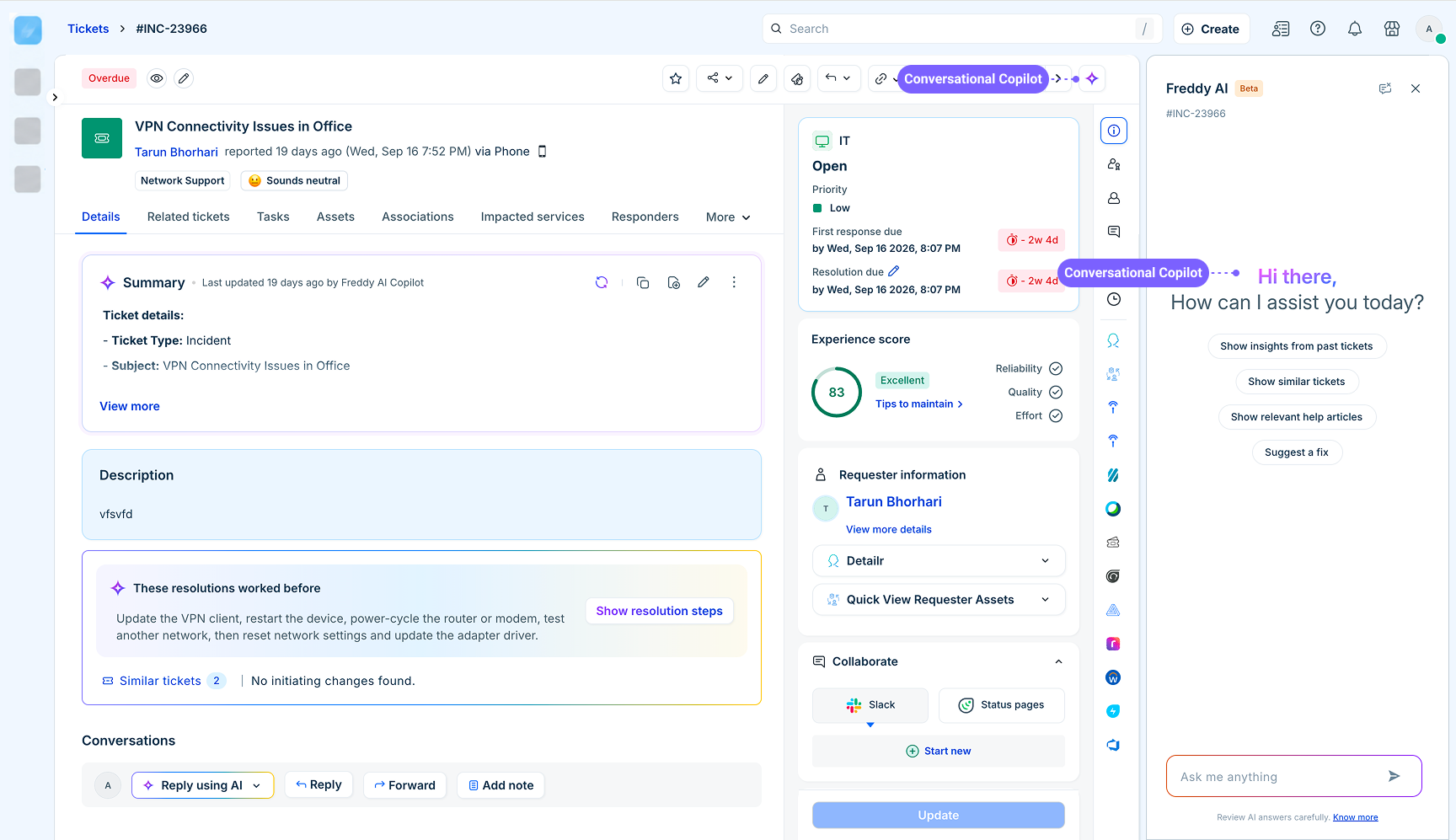
The disclosure helps agents distinguish AI-generated answers from information entered by a person.
Review AI-generated resolution notes
Resolution Note Generator can draft information such as:
Root cause
Actions taken
Resolution summary
The generated resolution note appears in an AI-highlighted container, using the same color as the AI sparkle icon.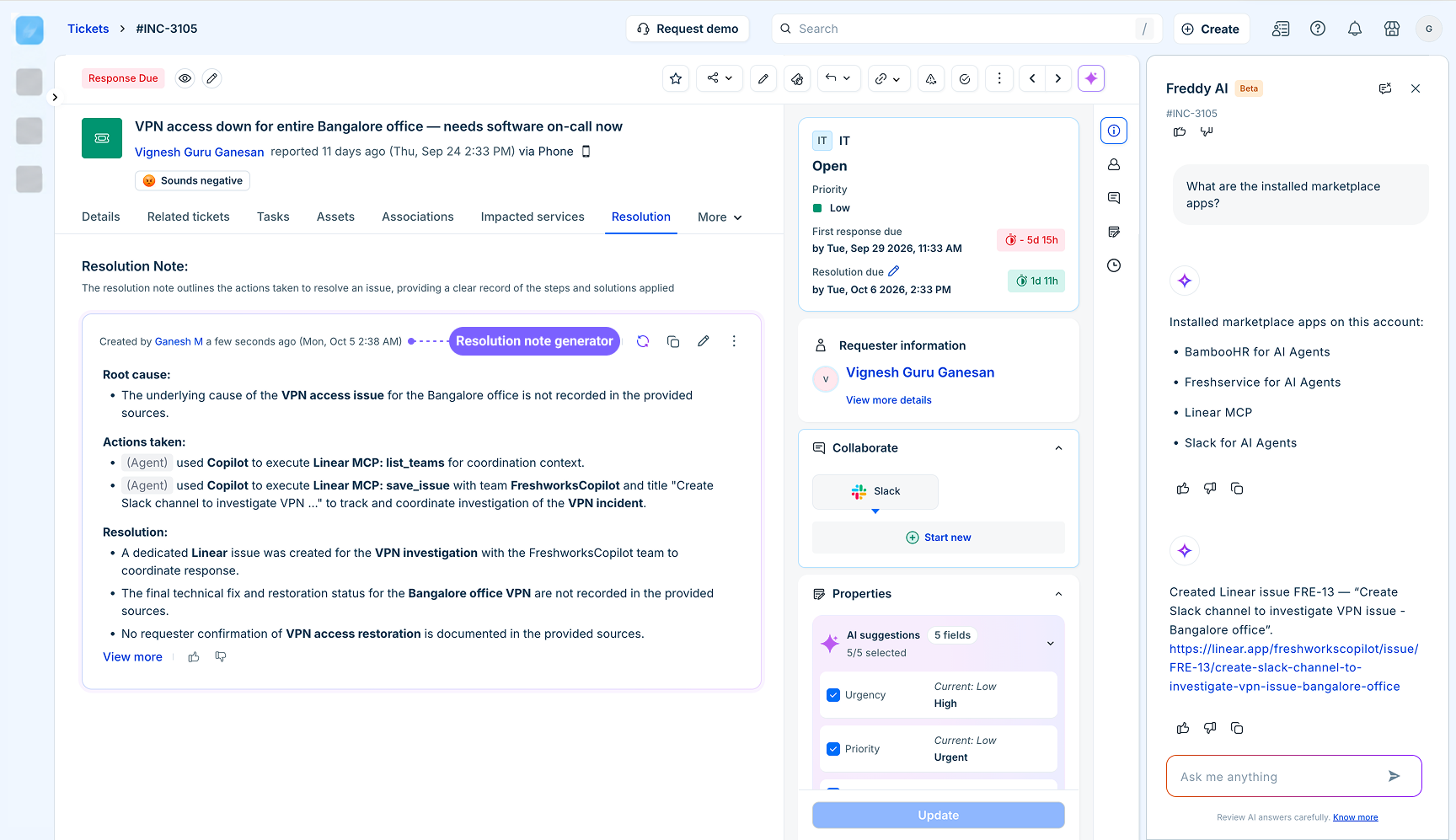
Check whether a summary was generated by AI
Summary Generator can summarize a long request conversation or collaboration channel.
You can identify an AI-generated summary by looking for the following visual cues:
Attribution: The summary includes an attribution such as Last updated by Freddy AI Copilot.
AI sparkle icon: An AI sparkle icon appears next to the summary.
Highlighted container: The generated summary appears in an AI-highlighted container.
Review AI-generated suggestions before applying them
AI can suggest values for request fields such as Priority, Category, Impact, and Status. You can identify AI-generated suggestions by looking for the following visual cues:
AI suggestions indicator: The suggestions appear under the AI suggestions indicator.
Highlighted fields: Fields with AI-generated suggestions are visually highlighted.
Accept action: An Accept action is available to apply the suggested values.
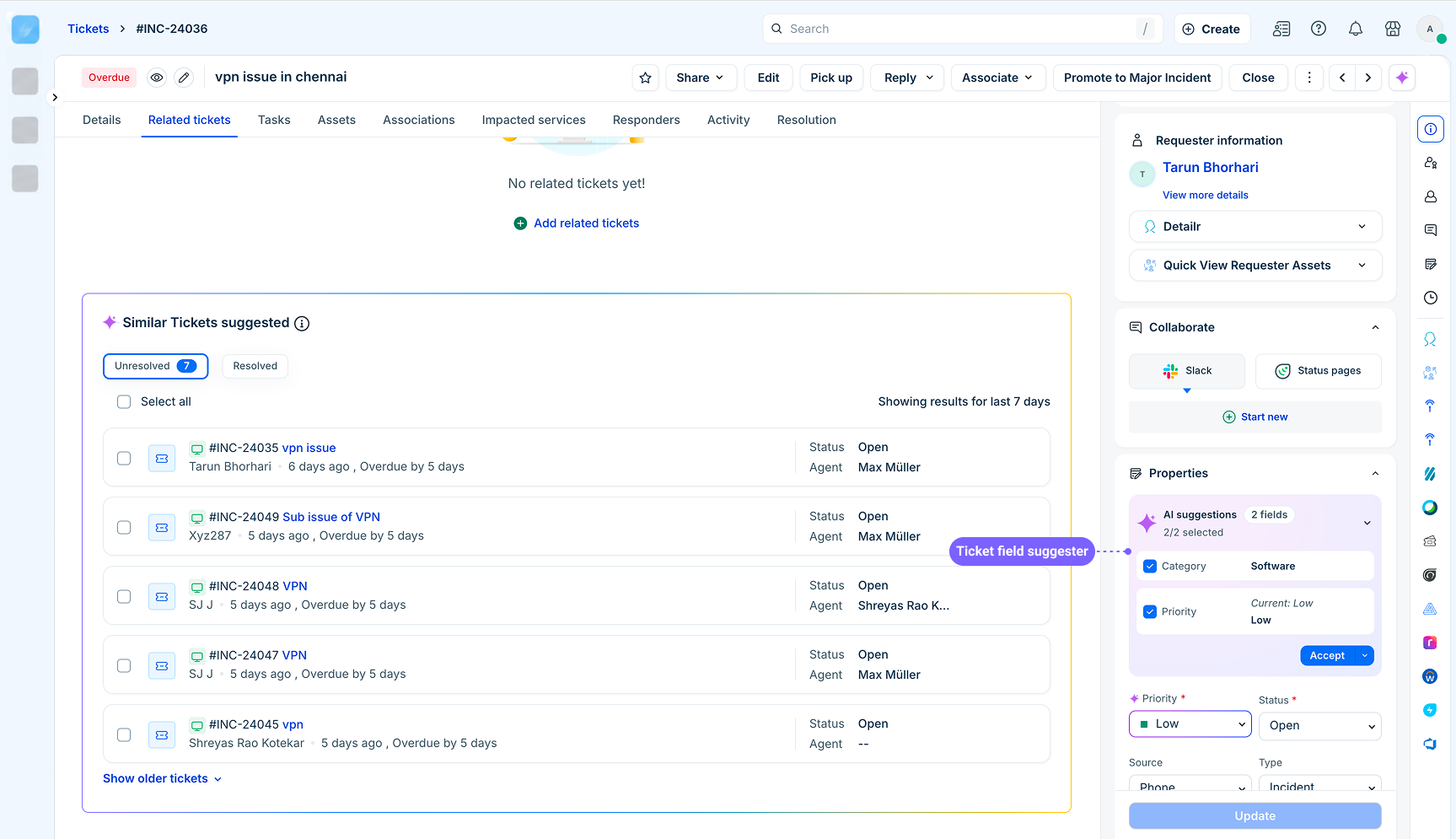
The agent can review the suggested value before applying it.
Use AI to find similar requests and changes
Similar Ticket and Similar Change Suggester can surface related requests or changes that may help agents investigate an issue.
Look for labels such as:
Similar Tickets Suggested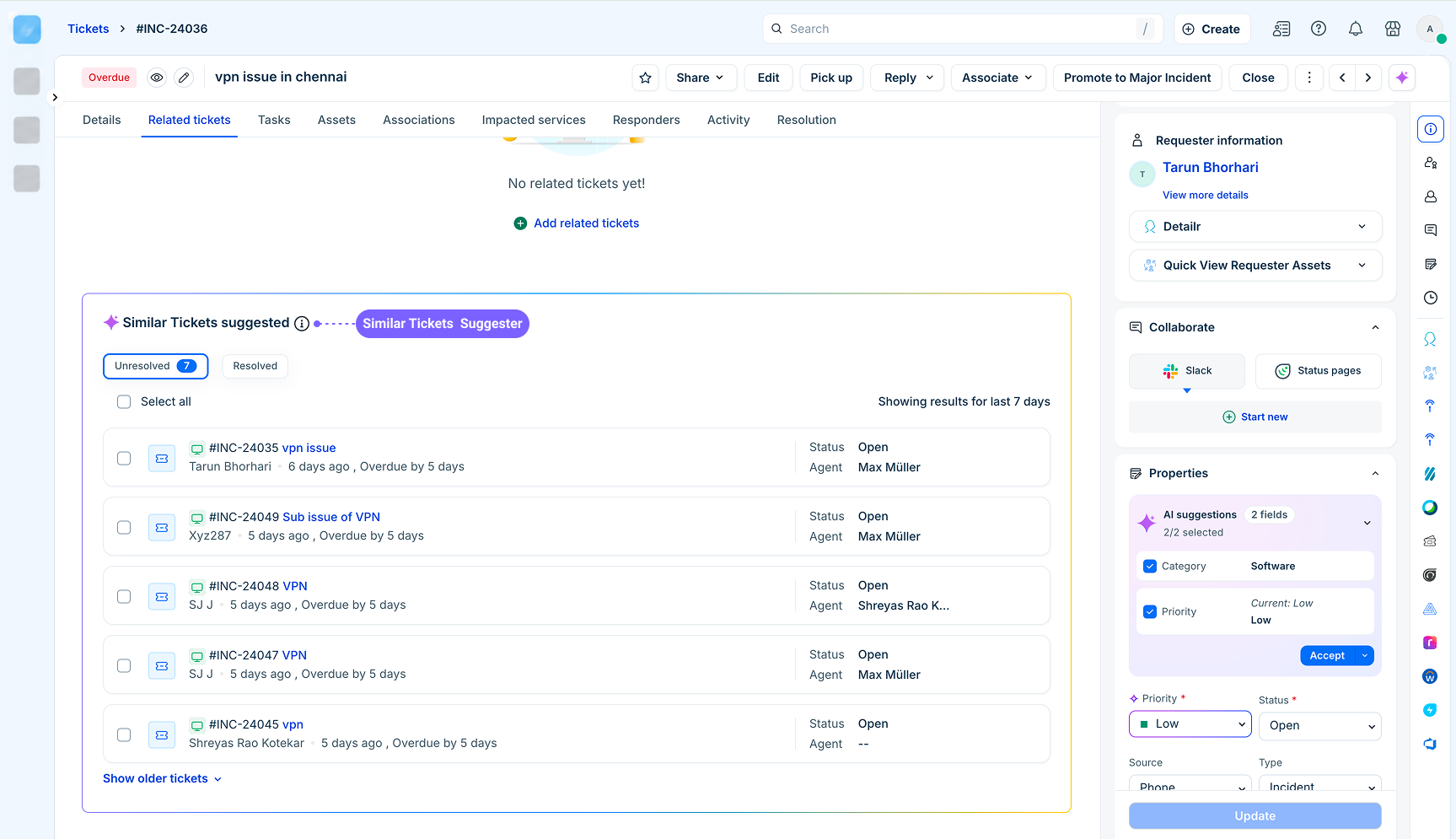
Similar Changes (Beta)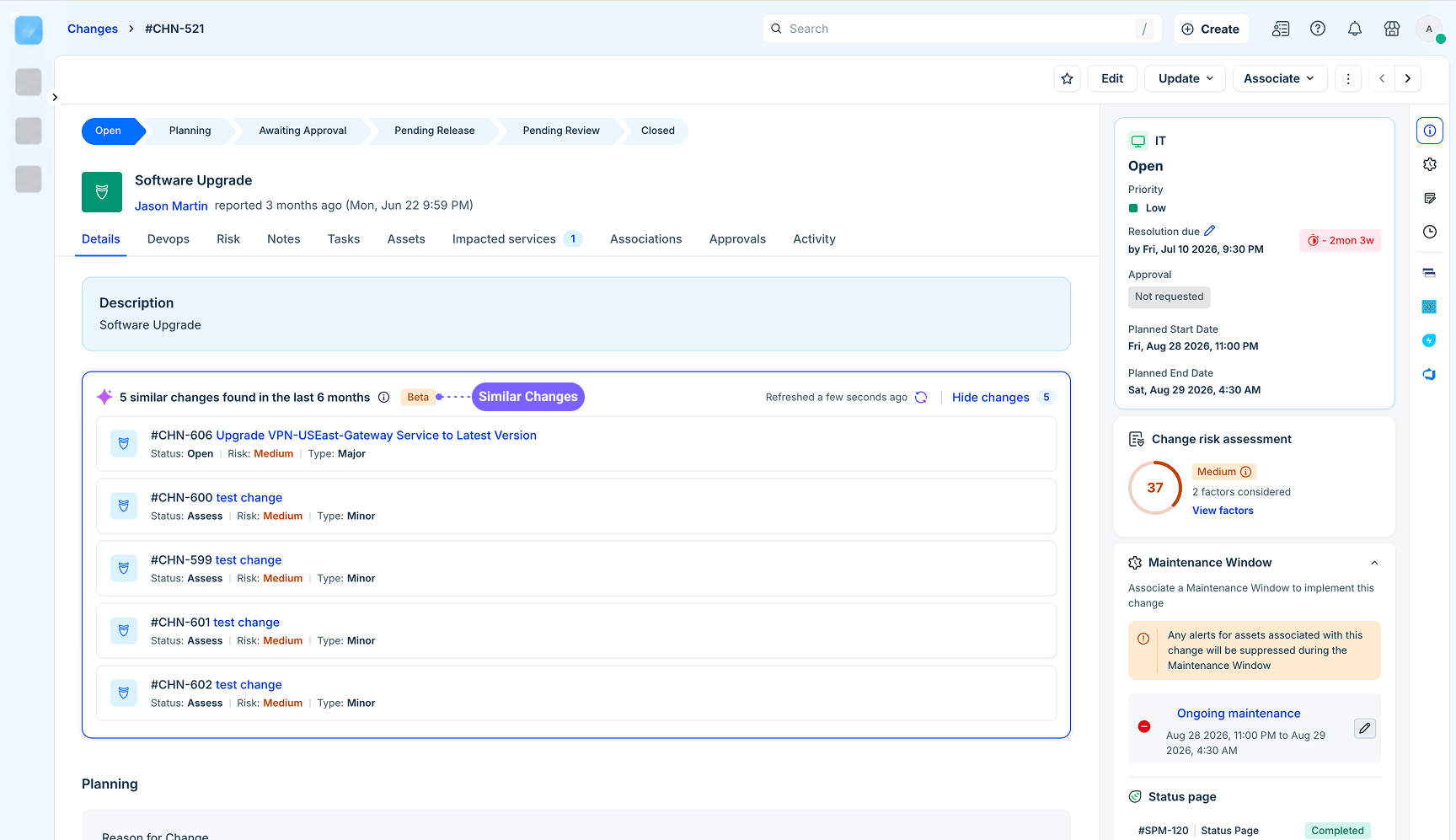
Review AI-generated sentiment
Sentiment Analysis uses AI to show how a requester's sentiment changes during a conversation.
The experience includes the disclosure: Generated by AI. Can make mistakes.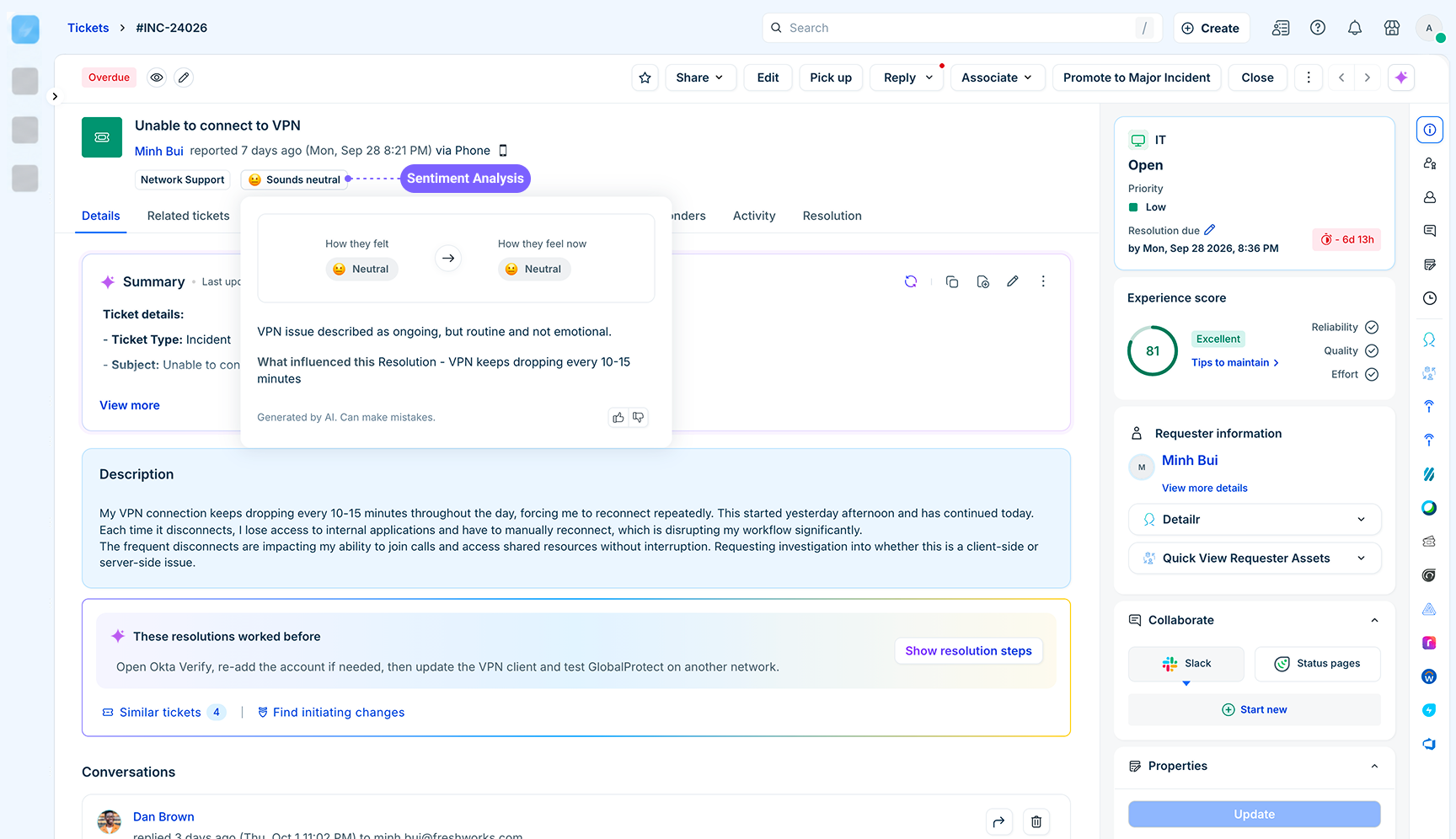
The disclosure indicates that the sentiment analysis is generated by AI and may not always be accurate.
Review AI-generated translations
AI-powered translation can translate incoming request content and outgoing replies. For incoming content, agents can select Show original to view the original text. 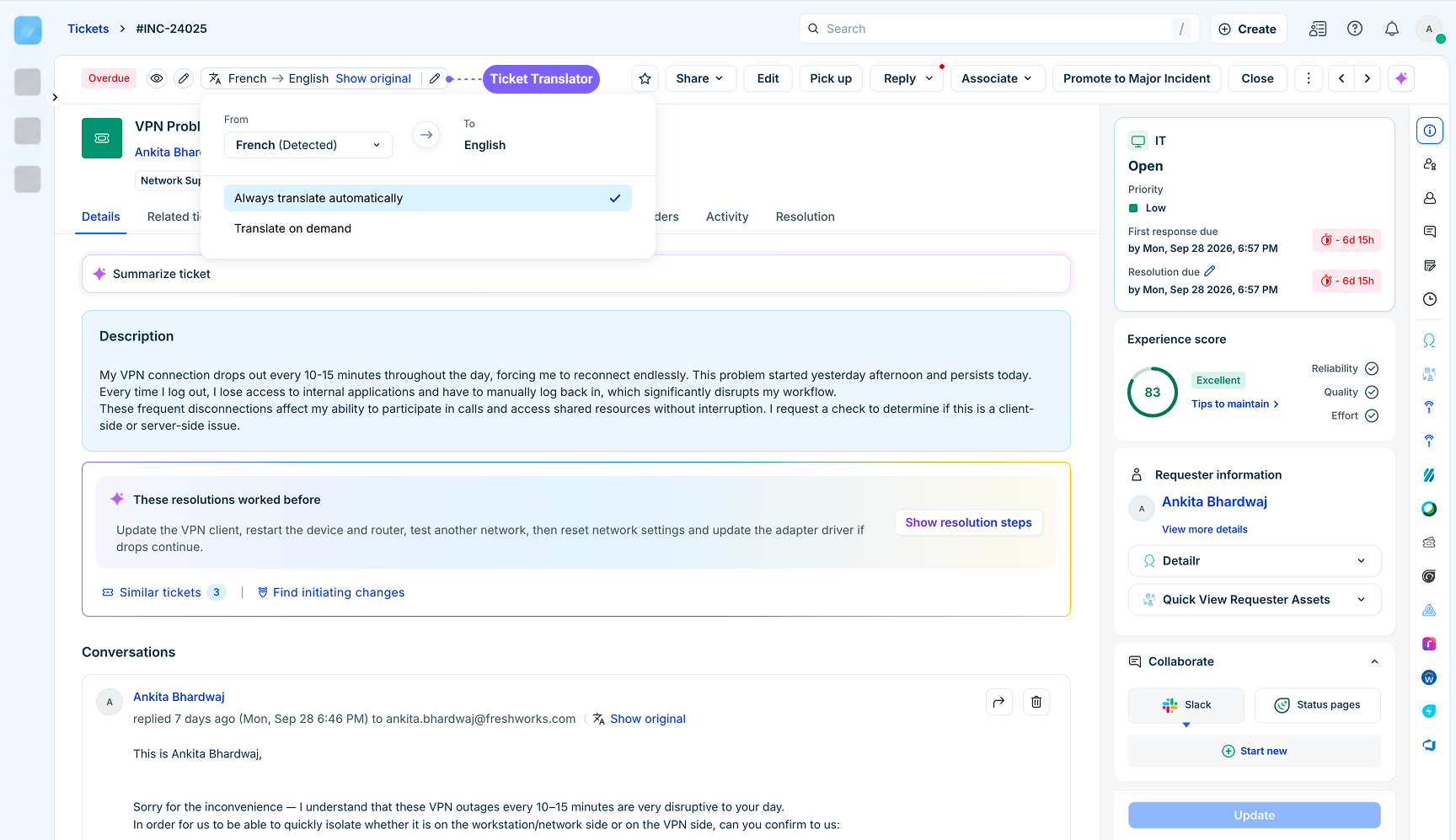
For outgoing replies, the interface identifies that the response will be sent as a translated version.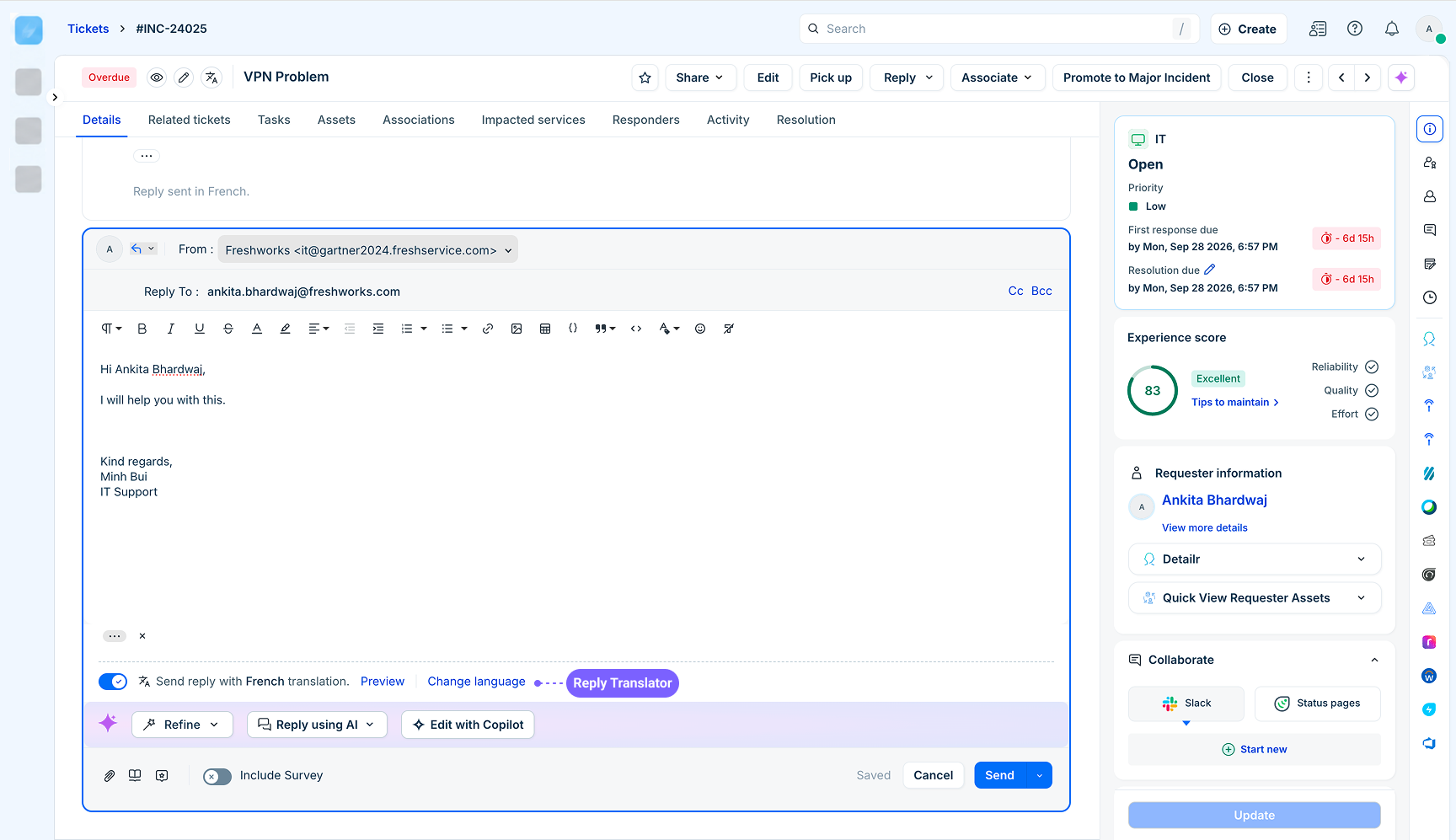
Use AI to find changes that may have caused an incident
Initiating Change Suggester can identify changes that may have contributed to an incident.
The action is identified as Find initiating changes.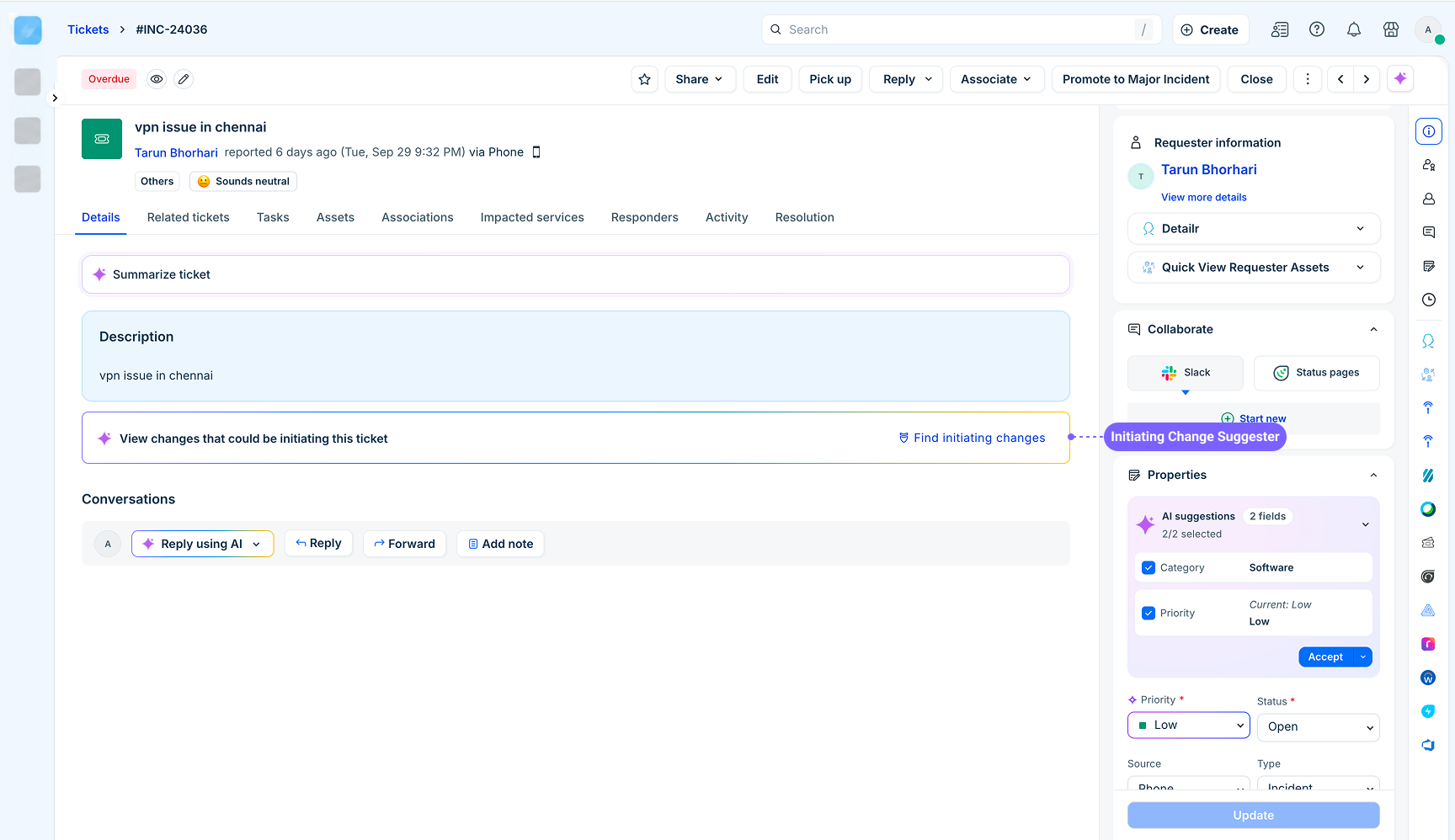
Understand how AI analyzed a skillset
AI Analysed Skillset can explain why a request was routed or matched to a particular skillset.
The experience is identified with AI Analysed Skillset and includes a View skillset option.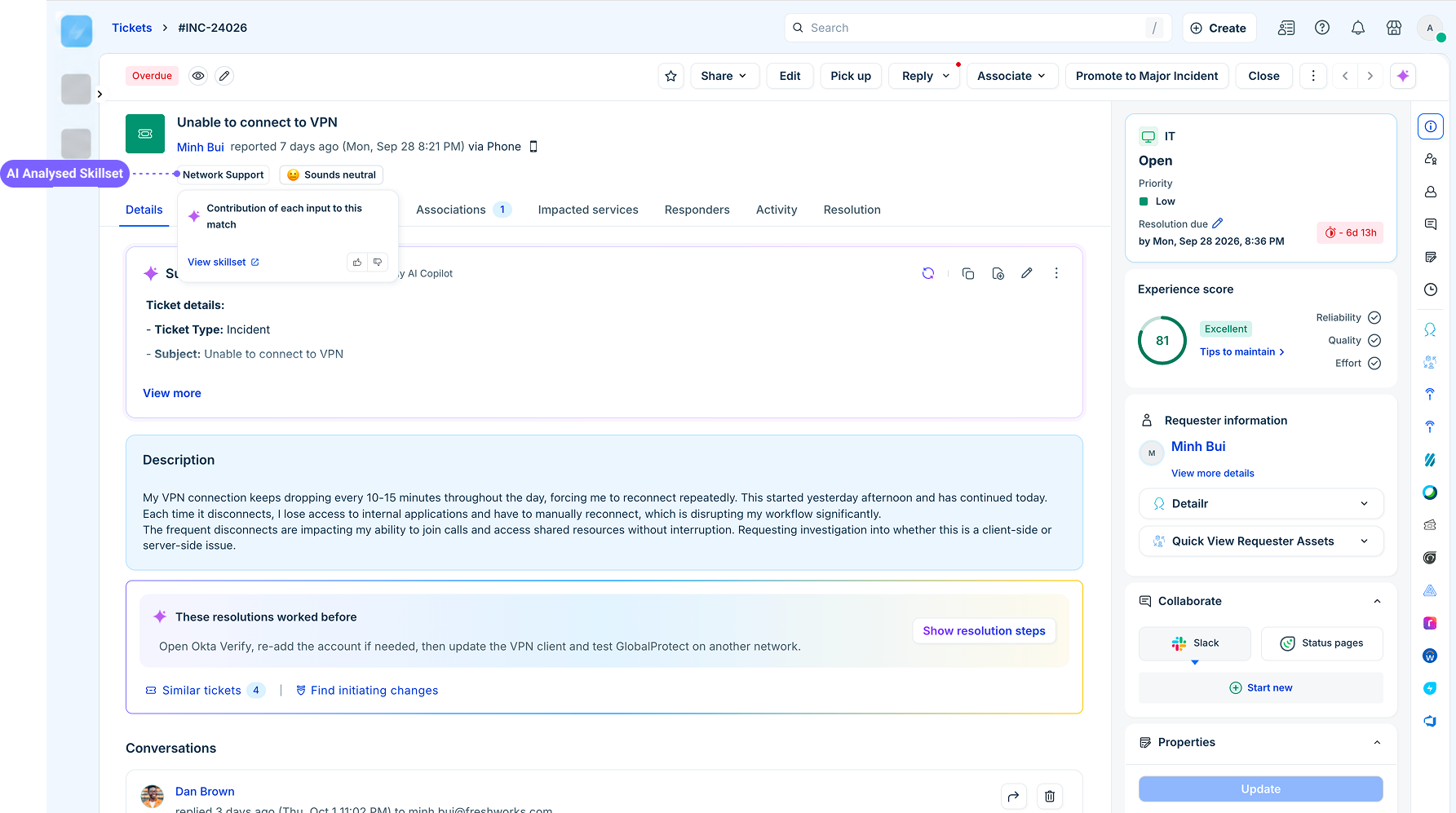
Review AI-generated reports and knowledge
AI can generate reports, knowledge content, and insights using information available in the product.
Review an AI-generated post-incident report
Post-Incident Generator can draft a post-incident report using information from a request and its available template fields.
Look for labels such as Generate report with the AI sparkle icon.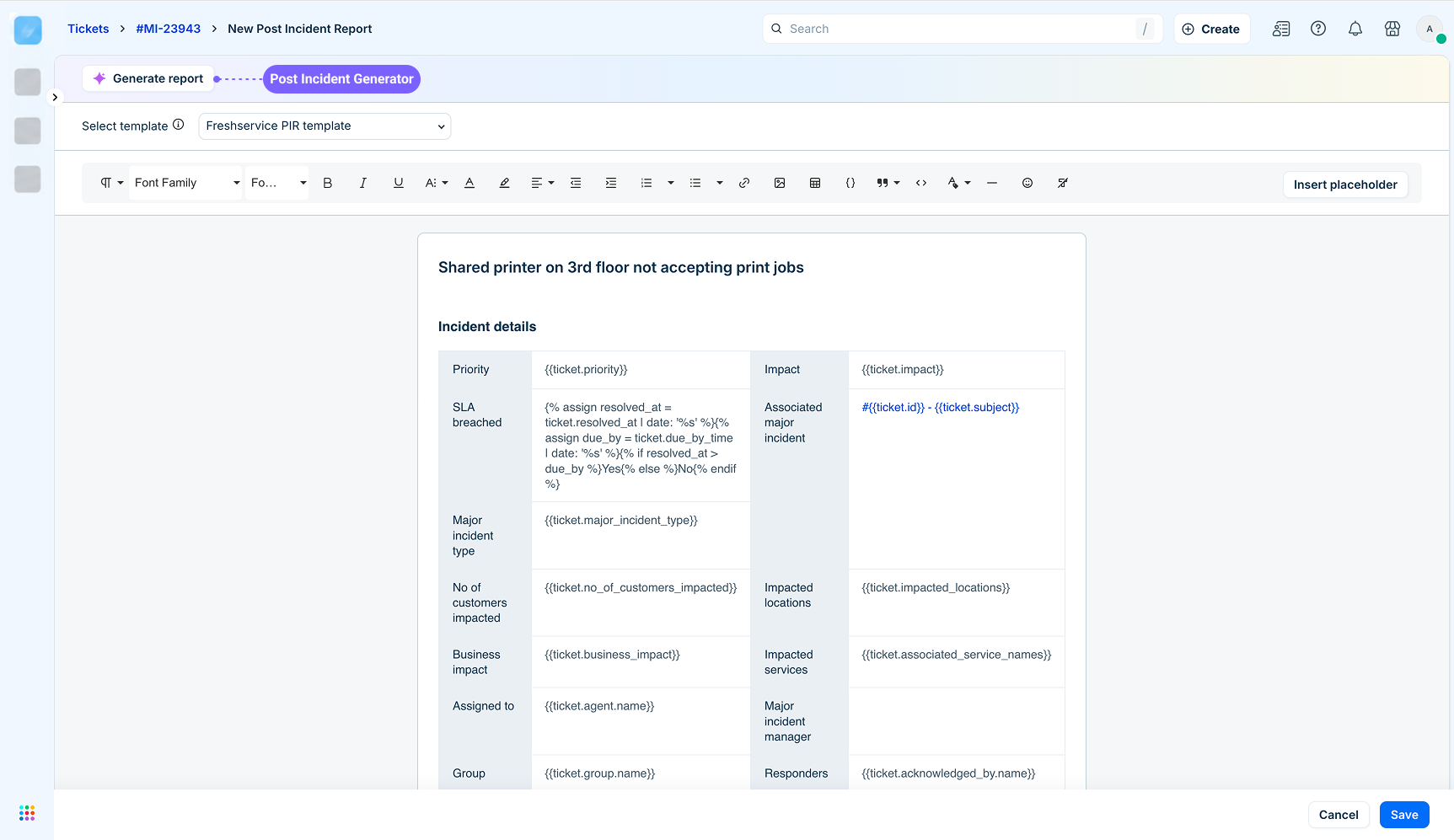
Review an AI-generated solution article
Solution Article Generator can draft a knowledge base article from a topic or keywords. The AI-generated article is indicated by the AI sparkle icon and the highlighted generation area.
Review AI-generated insights
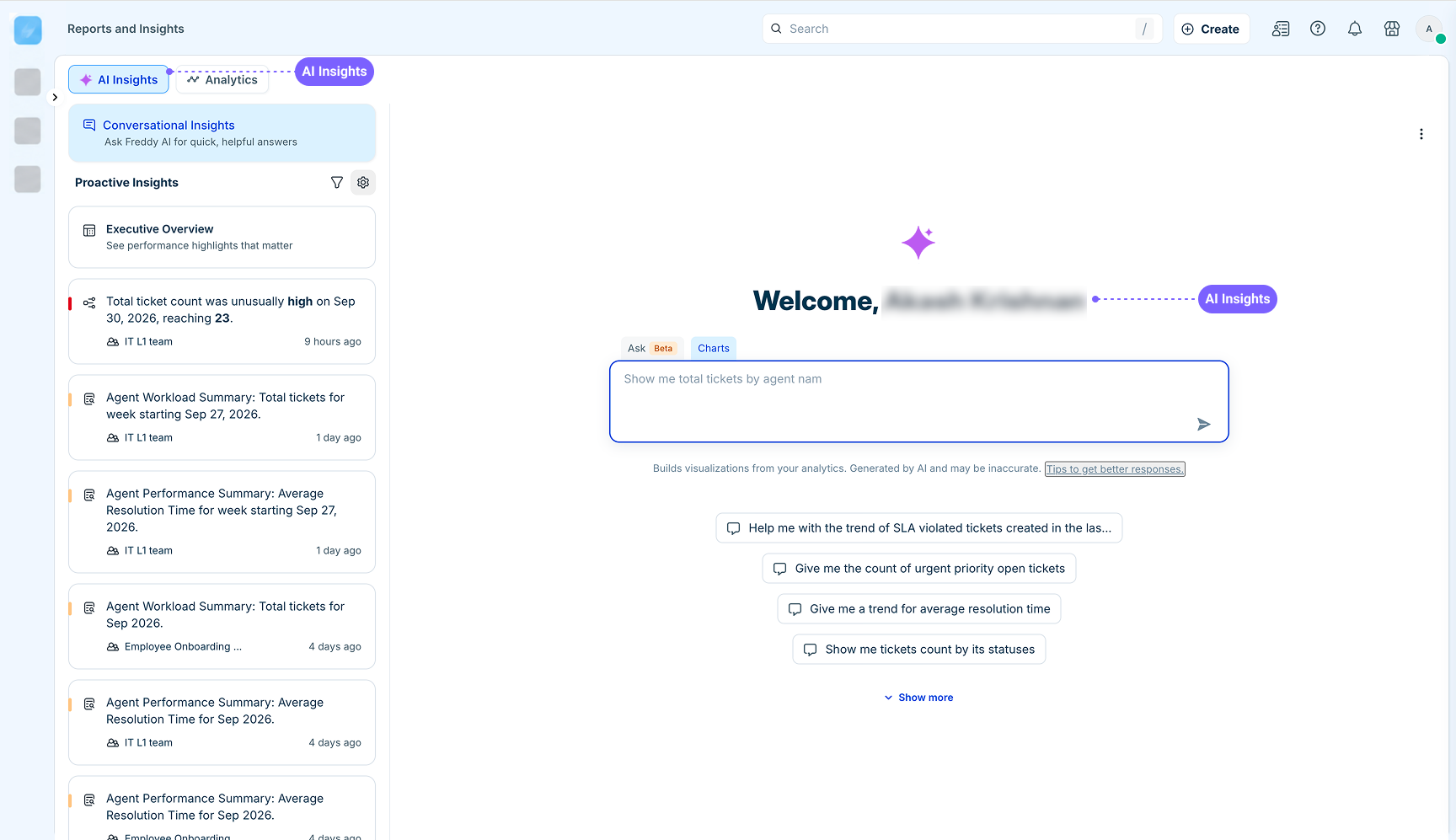
AI Insights can answer natural-language questions about reporting data and generate charts.
You can identify AI-generated insights by looking for the following visual cues:
AI Insights indicator: The AI Insights label identifies the AI-powered experience.
AI sparkle icon: A sparkle icon appears in the AI Insights experience.
AI disclosure: The generated response includes the disclosure Generated by AI and may be inaccurate.
Use labels and the AI icon to identify AI
You can use the labels and AI sparkle icon to identify AI involvement throughout the product.
Look for AI-related labels
Depending on the feature, you may see labels such as:
AI Agent
AI Agent response
AI Agent added note
AI Suggested Reply
Reply using AI
AI suggestions
Generated by AI. Can make mistakes.
Generated by AI and may be inaccurate
Review AI answers carefully
Last updated by Freddy AI Copilot
These labels identify the role AI played in the interaction or content.
Note: If you have questions about how a specific AI feature identifies AI involvement, contact your Freshworks Customer Success Manager (CSM) or email us at the appropriate address:
Freshservice: support@freshservice.com
Freshdesk: support@freshdesk.com